How to Send a Link From Your Phone to Your PC (No Account, No Cable)
You're on your phone, you find a page you want to keep reading — or fill out, or reference — on a bigger screen, and now you need to get that URL onto your PC. There's no single right answer here; which method works best depends on whether the two devices share a cable, an account, or even a Wi-Fi network. This guide walks through seven realistic options and is upfront about where each one falls short.
Published: 2026-07-26 (Last updated: 2026-07-26) · Written by katsuya_ds (About)
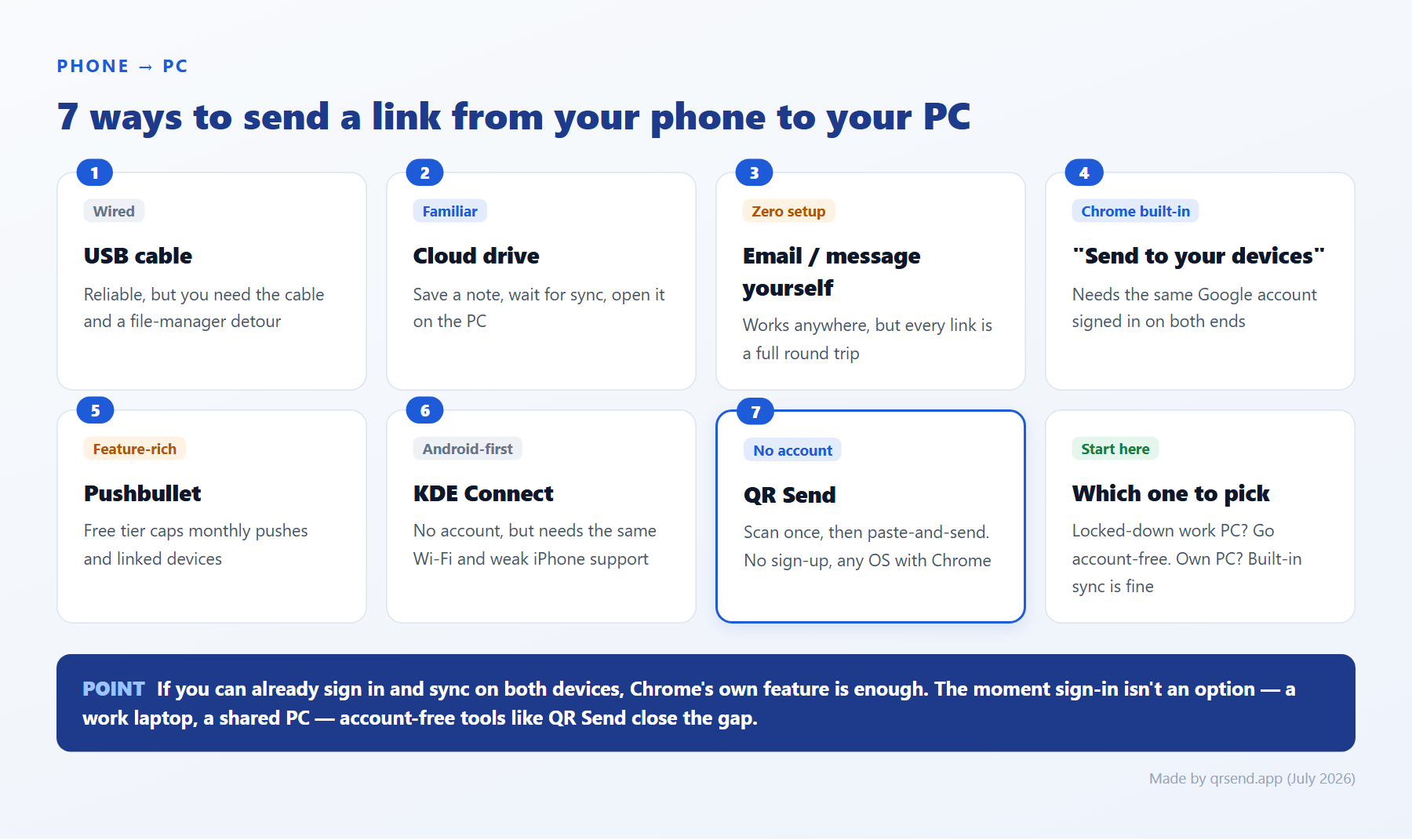
1. USB cable
Plugging your phone into your PC with a cable is the most literal way to move data between the two, and for files it works well — copy a photo or a document straight across, no internet required. For a URL specifically, though, there's no direct "drop a link" action. You'd typically write the URL down somewhere the phone can export as a file (a note, a screenshot with the address bar visible) and then dig through the phone's file browser on the PC to find it.
It's completely offline and needs no account of any kind, which matters if you're somewhere without Wi-Fi. But for something as small as a single link, unlocking the phone, connecting the cable, trusting the connection, and browsing its file system is a lot of steps for very little payload.
2. Cloud drive (Google Drive, Dropbox, OneDrive)
If you already keep a cloud drive app installed on both devices, saving a link as a note or a text file and letting it sync across is a familiar option. No new software to install, and the sync happens automatically once the file lands in the right folder.
The friction is in the detour: open the drive app, create or edit a note, wait for sync, then open the same app on your PC and find the file. It also depends on being signed into the same cloud account on both ends, and free-tier storage or sync frequency limits can occasionally slow things down. For a one-off link, it's a lot of interface to pass through.
3. Emailing or messaging yourself
The classic fallback: send the link to your own email address, or paste it into a chat app's note-to-self or a DM to yourself. It uses accounts you already have, so there's nothing new to set up, and it works from essentially any phone.
The downside is the number of steps every single time — switch apps, find the right thread or draft, paste, send, then switch to your PC and open the same app there. It adds up if you do this often, and your inbox or chat history slowly fills with one-off links you don't actually need to keep.
4. Chrome's "Send to your devices"
If you're browsing in Chrome on your phone, the share menu has a built-in "Send to your devices" option that pushes the current page straight to Chrome on your PC. It's fast, official, and needs no third-party app — Google already ships it.
It only works, though, if both devices are signed into the same Google account with sync turned on, and the page has to be open in Chrome specifically (not Safari or another browser). On a work computer where you can't or don't want to sign into a personal Google account, this option is effectively off the table. We cover the exact failure modes and fixes in a separate troubleshooting guide if this is the method you're trying to get working.
5. Pushbullet
Pushbullet mirrors notifications and pushes links, text, and files between your phone and PC in real time, and for years it's been one of the most complete tools for this exact job. Setup involves installing the app or browser extension and signing in with an account.
The free tier caps how many pushes you can send in a month and how many devices can stay linked, and going past that means a paid subscription. If sending links is the only thing you need, a full-featured tool with its own account and monthly limits can feel heavier than the task calls for. We compare it against other feature-rich options in more detail in our Pushbullet alternatives roundup.
6. KDE Connect (Android and Linux/Windows/Mac)
KDE Connect is a free, open-source project that pairs your phone and PC over the same Wi-Fi network, with no account required at all. Once paired, it handles notification mirroring, file transfer, clipboard sync, and opening links straight from your phone.
The catch is twofold: it needs both devices on the same local network, so it won't help across different networks or with your phone on mobile data, and iPhone support is essentially not there in any full-featured way. If you're on Android and a desktop Linux, Windows, or Mac machine on the same Wi-Fi, it's a strong no-account option.
7. QR Send
QR Send is a free, single-purpose tool built around exactly this task: pairing happens by scanning a QR code that a Chrome extension displays on your PC — no Google account, no email address, no phone number, and nothing to sign up for. Once paired, you paste a URL into a page on your phone and it opens automatically in Chrome on your PC. It runs on any OS that has Chrome, so Windows, Mac, Linux, and Chromebooks are all covered the same way.
To be upfront about the trade-offs: QR Send only moves URLs, so it won't mirror notifications, transfer files, or sync your clipboard the way Pushbullet or KDE Connect can, and delivery can occasionally take a few seconds up to around 30 seconds depending on network conditions. If a full-featured bridge between your devices is what you're after, one of the options above will do more. If you just need a link on your PC without touching an account, it's built for exactly that.
Comparison table
| Method | Account needed | Network needed | Works on iPhone | Effort |
|---|---|---|---|---|
| USB cable | None | None (offline) | Yes, with extra steps | High for a single link |
| Cloud drive | Cloud account required | Internet | Yes | Moderate |
| Email / message yourself | Existing account works | Internet | Yes | Repetitive per use |
| Chrome "Send to your devices" | Same Google account required | Internet | Yes (Chrome only) | Low, once set up |
| Pushbullet | Account required | Internet | Yes | Moderate, monthly cap on free tier |
| KDE Connect | None | Same Wi-Fi | Weak / unofficial | Moderate |
| QR Send | None (just scan a QR code) | Internet | Yes | Low (one-time QR scan) |
Which one should you use?
- Your own PC, already signed into Google with sync on: Chrome's "Send to your devices" is the fastest option — it's already there, no new app needed.
- Android phone and a Linux, Windows, or Mac desktop on the same Wi-Fi: KDE Connect gives you notification mirroring and file transfer alongside link opening, all with no account.
- You want notification mirroring and don't mind an account and a monthly cap: Pushbullet is the most feature-complete of the group.
- No internet available at all: a USB cable is the only option here that works fully offline, even though it's overkill for a single link.
- A locked-down work PC, a shared computer, or any OS running Chrome, and you'd rather not sign into anything: QR Send is built specifically for this case — scan once, then paste and send.
For a step-by-step walkthrough of setting up QR Send, see the full setup guide. Once it's paired, sending a link is just a matter of opening the send page on your phone, pasting the URL, and tapping send.
Conclusion
There's no universally "best" way to send a link from phone to PC — the right choice depends on what accounts you're already signed into, whether both devices share a network, and how often you need to do this. If you already meet Chrome's or KDE Connect's requirements, stick with what's built in. If signing into anything isn't practical, an account-free, single-purpose tool like QR Send closes that gap without asking you to trade away privacy or wait on a monthly send limit.
Frequently asked questions
Q. What's the fastest way if I'm already signed into Google on both devices?
A. Chrome's "Send to your devices" is built in and needs nothing extra installed — it's the quickest option when the sign-in requirement is already met.
Q. Is there a way that needs absolutely no account at all?
A. KDE Connect and QR Send both require no account. KDE Connect needs both devices on the same Wi-Fi and has weak iPhone support, while QR Send pairs by scanning a QR code and works over the internet on any OS running Chrome.
Q. What about a work computer where I can't sign into a personal account?
A. That's exactly the case an account-free tool solves. QR Send and KDE Connect don't require any personal account sign-in, though KDE Connect still needs the work PC on the same Wi-Fi as your phone.
Q. Do I need an internet connection for all of these?
A. A USB cable is the only fully offline option in this list. KDE Connect works over a local Wi-Fi network without internet access, and the rest — cloud drive, email, Chrome sync, Pushbullet, and QR Send — all need an internet connection.